Passkeys in Real Life: Lost Phones, Multiple Devices, and Getting Started
A few days ago I put together a visual explainer on how passkeys actually work. It got a brilliant response — but it also generated a couple of very relevant questions: “What if I lose my phone?” and “I use more than one device — how does that work?”
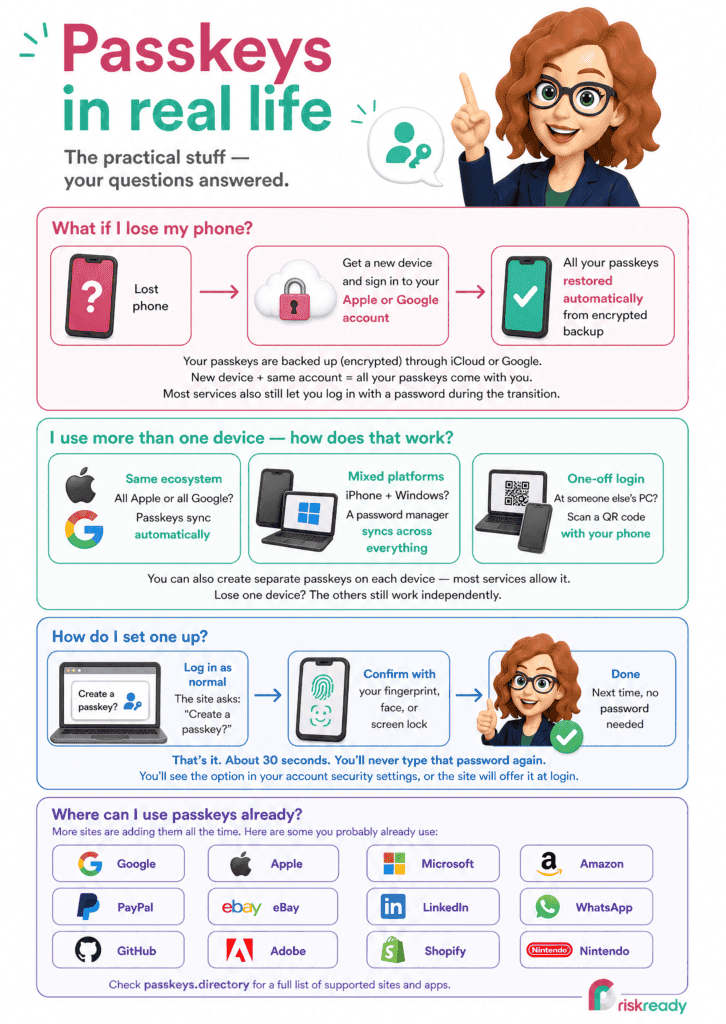
So I’ve made a second infographic that tackles the practical side. If the first one was about how passkeys work, this one is about how they fit into your life.
What happens to my passkeys if I lose my phone?
This is the one that worries people most, and it’s understandable. If your passkey lives on your phone and your phone ends up at the bottom of a puddle, have you just locked yourself out of everything?
In most cases, no. If you’re on an iPhone, your passkeys are backed up through iCloud Keychain. On Android, they’re backed up through Google Password Manager. That backup is encrypted end-to-end — as I covered in the first infographic, the cloud stores a locked box that even Apple or Google can’t open.
So when you get a new phone and sign in with your Apple or Google account, your passkeys come with you. You don’t need to recreate them one by one. They’re just there.
If you use a password manager like 1Password or Bitwarden to store your passkeys, the same applies. Replace the device, install the app, log in, and your passkeys are waiting.
It’s also worth knowing that most services haven’t removed password login yet. During this transition period, you can usually still fall back to a password and two-factor authentication if you need to. Passkeys are being added as a better option, not as the only option..
I use more than one device — how does that work?
If all your devices are in the same ecosystem — say, an iPhone, an iPad, and a Mac — this is straightforward. Your passkeys sync automatically through iCloud Keychain. Create a passkey on your phone, and it’s available on your laptop within seconds. The same applies if you’re all-in on Google.
Where it gets slightly more involved is when you work across ecosystems. If you’ve got an iPhone but use a Windows laptop, Apple’s iCloud Keychain won’t help you on the Windows side. The simplest solution is a cross-platform password manager like 1Password or Bitwarden that runs on everything and syncs your passkeys regardless of the operating system.
Most services also let you create more than one passkey for the same account, so you could set up separate passkeys on each device. Each one works independently, and if you lose one device, the others still get you in.
There’s also a nice trick for one-off situations. If you’re at someone else’s computer and need to log into a service where your passkey is on your phone, many websites will show you a QR code. Scan it with your phone, authenticate with your fingerprint or face, and you’re in. Your phone acts as the authenticator without the passkey ever touching the other machine.
How do I actually set one up?
This is the bit that surprises people. Setting up a passkey takes about thirty seconds. Next time you log in to a supported site, you’ll either see a prompt asking if you’d like to create a passkey, or you’ll find the option in your account security settings. You say yes, confirm with your fingerprint, face, or screen lock, and you’re done. Next time you visit that site, no password needed.
That’s it. There’s no app to install, no code to remember, no token to carry around. It’s built into your device.
Where can I use passkeys already?
More sites are adding passkey support all the time. You can already use them with Google, Apple, Microsoft, Amazon, PayPal, eBay, LinkedIn, WhatsApp, GitHub, Adobe, Shopify, and Nintendo, among many others. If you want to check whether a particular site supports passkeys, passkeys.directory maintains a community-driven list that’s kept up to date.
What should organisations be thinking about?
For individuals, passkeys mostly just work. For organisations, there’s a governance layer to think about. Where are staff storing their passkeys? What happens when someone leaves and their passkeys are on a personal device? How do you handle account recovery?
None of these are reasons not to adopt passkeys. They’re reasons to think about the policies and controls around them before you roll out, rather than after. The technology is solid. The governance is what makes it work in practice.
If your team could do with a refresher on information security fundamentals — including authentication, phishing, and device security — our Information Security Awareness course covers all of it in plain English. Have a look at the course page to see if it’s right for your organisation.