How Passkeys Actually Work (in Plain English)
Last week I wrote about passkeys — what they are, why the NCSC and GCHQ are telling us all to start using them, and what it means for organisations. The post got a lot of attention, and one comment in particular stuck with me. Someone asked: “Can we just see a cartoon of exactly what happens?”
Fair point. Most of the coverage around passkeys talks about why they’re better, but not many people explain how they actually work. And if you don’t understand what’s happening behind the scenes, the whole thing sounds like you’re just swapping one form of blind trust for another.
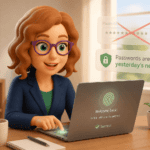
So I made the cartoon. You can download it below, print it out, stick it on a noticeboard, or share it with your team. No charge, no sign-up required.

The short version
When you set up a passkey, your device creates a pair of digital keys. One stays on your device and never leaves. The other gets sent to the website. When you log in, the website sends your device a challenge, your device proves it’s you (using your fingerprint, face, or screen lock), and sends back a signed response. The website checks that response against the key it holds, and you’re in.
No password is typed. No password is sent. There’s nothing for anyone to steal, guess, or phish out of you.
Why this matters for phishing
This is the bit that makes passkeys different from every other security improvement we’ve been asked to adopt over the years. Your passkey is mathematically tied to the real website. If a phishing email sends you to a fake version of your bank’s login page, your device simply won’t respond. It checks the website’s identity before it does anything, and if the address doesn’t match, it refuses. You don’t have to spot the dodgy URL yourself. Your device does it for you.
And if the real website gets breached? All the attackers get is the public key, which is useless without the private one sitting on your device. Think of it like a stolen padlock — without the key, it’s just a lump of metal.
"But I don’t trust Google with my security"
This was the other thing that came up a lot. If passkeys are stored by Apple, Google, or Microsoft, aren’t we just handing our security to the same companies that want to upload everything to the cloud?
It’s a reasonable concern, but it misses how passkeys are designed. When your passkey syncs between your devices — say, from your phone to your laptop via iCloud — it’s encrypted end-to-end. Apple stores the data, yes, but they store a locked box they can’t open. The same goes for Google and Microsoft. They can see that a blob of encrypted data exists. They cannot read what’s inside it.
That’s the difference between “stored in the cloud” and “readable in the cloud,” and it’s an important distinction.
What should you actually do?
If you’re already being offered the option to set up a passkey on sites you use — Google, Apple, Amazon, PayPal, and plenty of others now support them — it’s worth doing. It takes about thirty seconds, and once it’s set up you’ll never type that password again.
For organisations, the shift is worth paying attention to. The NCSC has formally recommended passkeys as the default authentication method, and the UK government is rolling them out across its own services. This isn’t fringe technology. It’s the direction of travel, and staff awareness needs to keep pace.
If your team could do with a refresher on information security basics — passwords, phishing, device security, and how to spot the common tricks — our Information Security Awareness course covers all of it in plain English, with no jargon and no scare tactics. Have a look at the course page to see if it’s right for your team.